

SFS Store - registration and sign-in
This guide provides step-by-step instructions for registering to SFS Store, activating your account, and signing in using Microsoft 365 SSO. The instructions apply to both corporate and private users and also include guidance for situations where registration has been left incomplete or when SSO login requires approval from the organization’s IT administration.

On this page:
User registration
To create a user account in SFS Store, do the following (NOTE: If your organisation uses SSO provided by Microsoft 635, go to section “SSO login”):
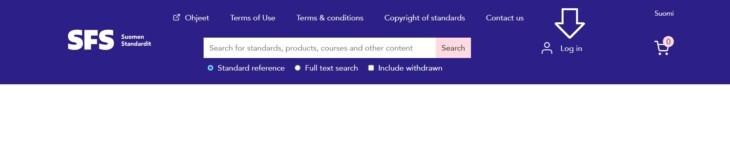
At the top of the page, select “Log in”:
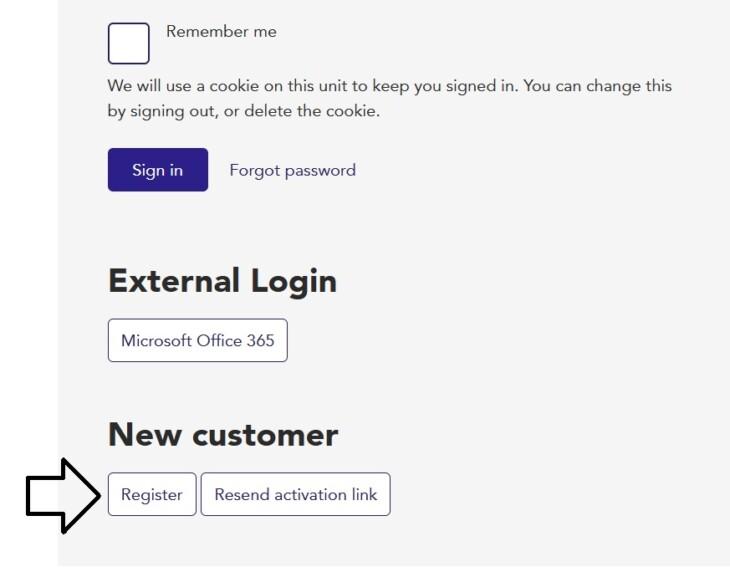
Scroll to the bottom of the page and select “Register”:
Select “Corporate customer” or “Private customer”:
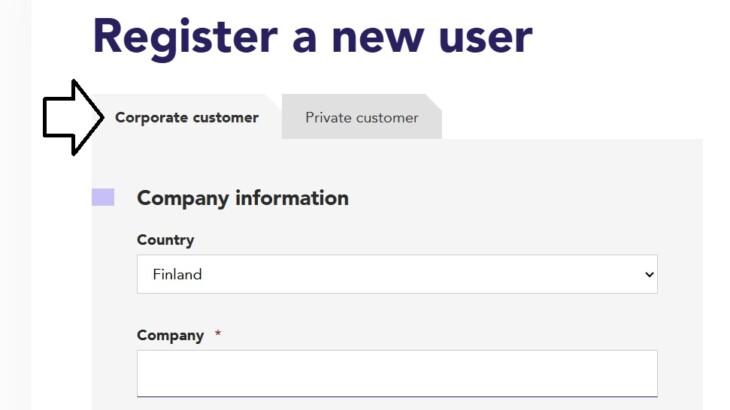
The required fields (for corporate customers) are:
Company information
- Company name
- Business ID
- Address
- Zip / postal code
- City
Please check that you have filled in this information correctly. This information links you to the correct organisation.
Your personal details
- First name
- Last name
Accept the terms of use and select “Register”.
You will receive an e-mail requesting confirmation.
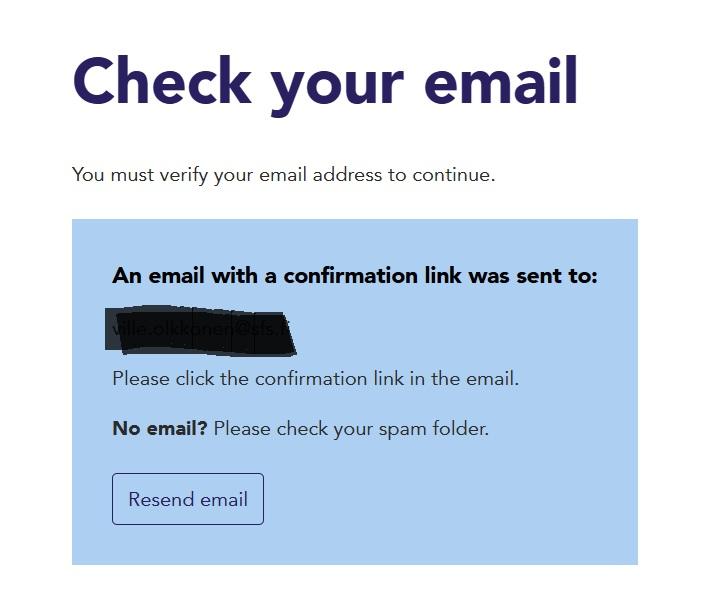
Check your inbox and click the “Activate my account” link in the message. You can also copy the link address and paste it into the browser address bar.
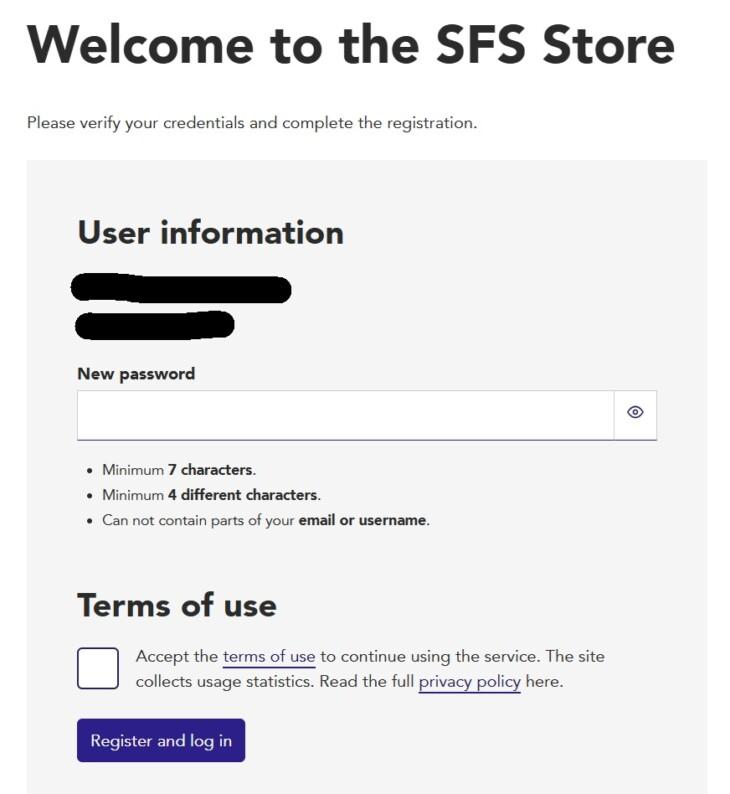
Proceed to finalise your registration process. Create a password, accept the terms of use and select “Register and log in”.
Activating a user account after an incomplete registration process
If you have previously started the registration process but have not completed it, you must activate your user account.
Do the following:
At the top of the page, select “Log in”:
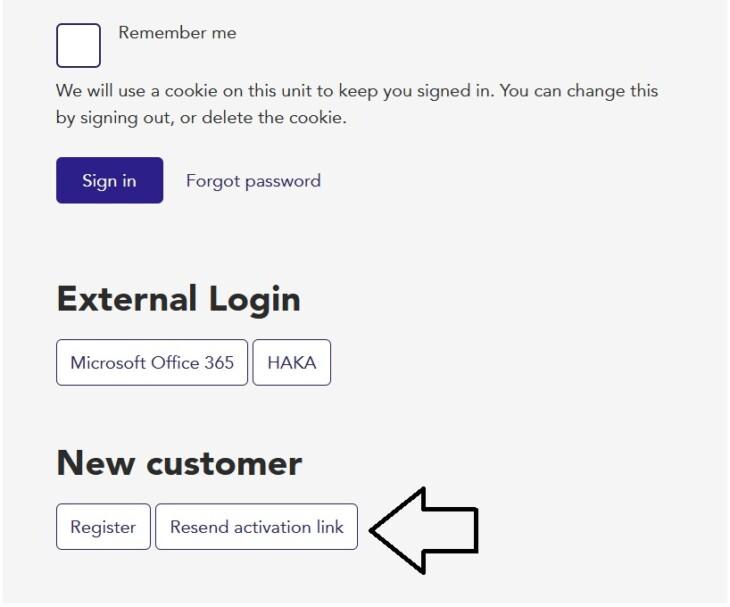
Scroll to the bottom of the page and select “Resend activation link”.
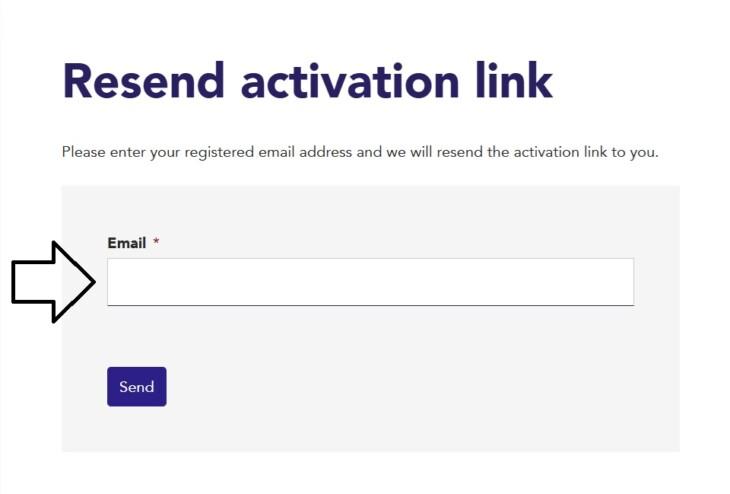
Type in your e-mail address and click “Send”.
NOTE: If you did not receive an e-mail, check your spam or junk mail folder.
Click the “Activate user account” link in the message.
SSO login
If your organisation uses SSO provided by Microsoft 365, you can log in to SFS Store using SSO.
Do the following: At the top of the page, select “Log in”:
Scroll down to “External login” and select “Microsoft Office 365”:
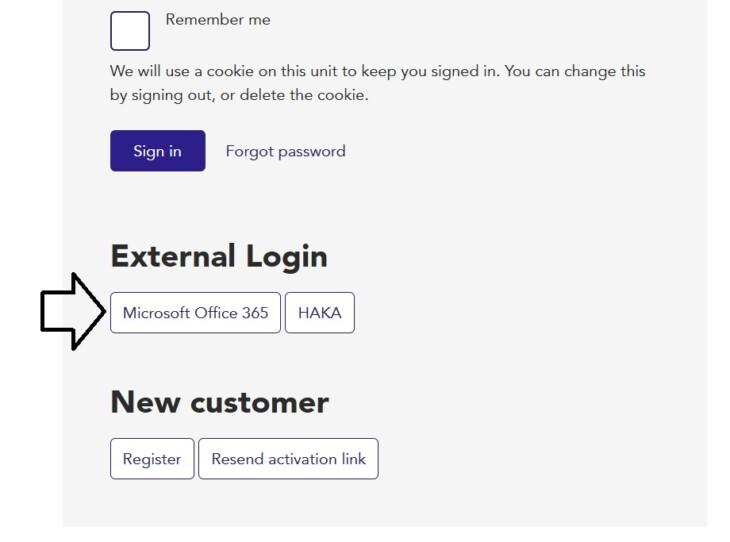
You can also log in directly using SSO at https://store.sfs.fi/m365.
Admin consent
Some organisations require admin consent for using the Microsoft SSO login method. If your organisation requires admin consent, the first user to log in will receive the following message:

If you receive this message, you can contact our customer service: store(at)sfs.fi
You can still log in using your e-mail address and password.