

SFS Store - instructions for Subscription administrator
This page describes the role and key responsibilities of a subscription administrator in SFS Store. It provides guidance on managing your organisation’s users, access rights, and subscriptions, as well as ensuring that all users have access to the standards they need. You will also find instructions for adding new users and using the main features of the service.

On this page:
The role of subscription administrator in SFS Store
As your organisation’s subscription administrator, you are responsible for ensuring that all users within the organisation have access to the standards they need. You can manage user access rights and roles under My products in SFS Store. You can also add new users to the service.
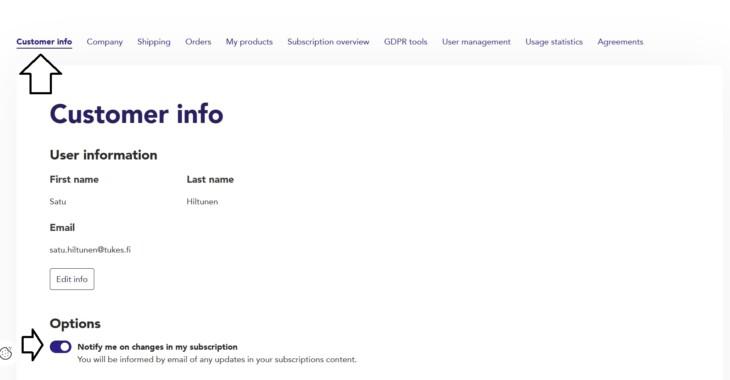
Customer info
In the Customer info tab, you can edit your personal details. You can also deactivate notifications regarding updates to your standards.
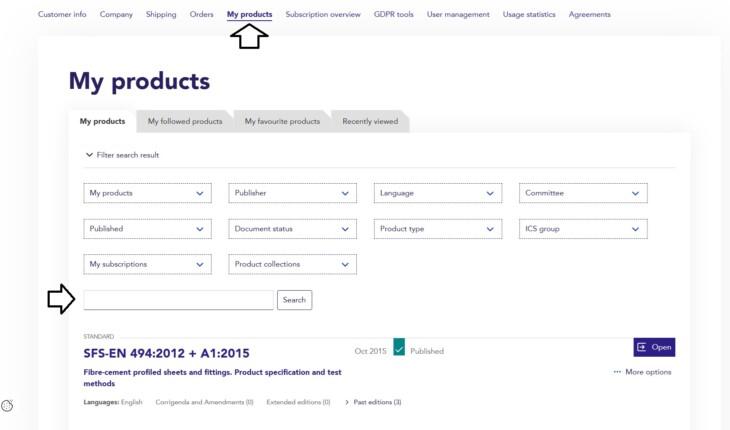
My products
In My products, you can view the standards included in your organisation’s subscription. Use the drop-down menus and word search to filter search results.
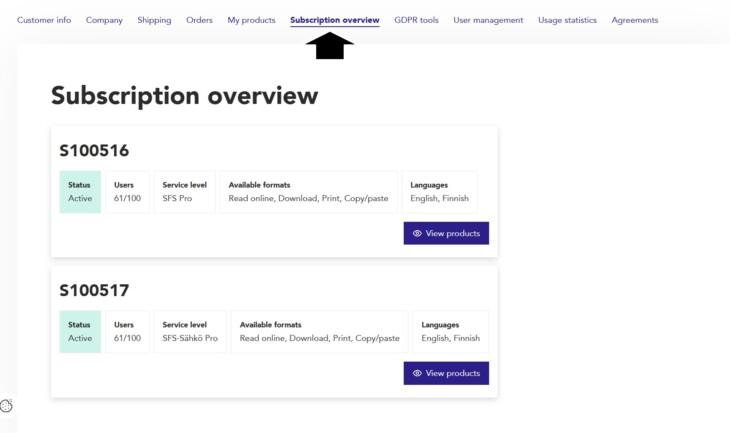
Subscription overview
In the Subscription overview tab, you can view your organisation’s subscriptions listed by publisher. For each subscription, you can view
- the status of the subscription
- the number of users (registered users or users with read access)
- the service level (as determined in your organisation’s agreement)
- access rights (ways to access and read standards)
- the language options available.
User management
In the User management tab, you can view all users registered for your organisation. Here you can
- remove or add user roles
- remove and add users to subscriptions
- remove users from your organisation.
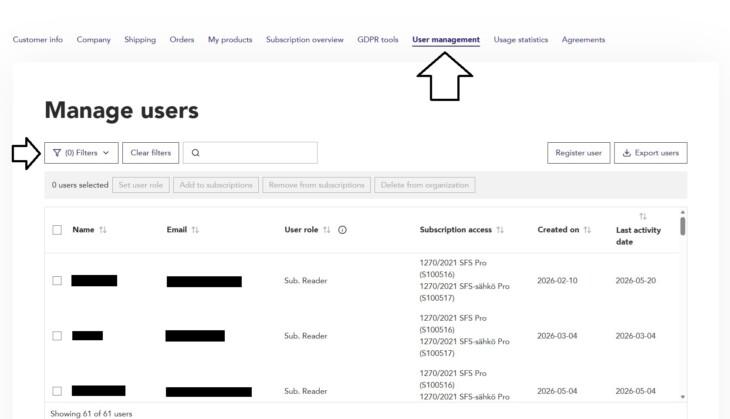
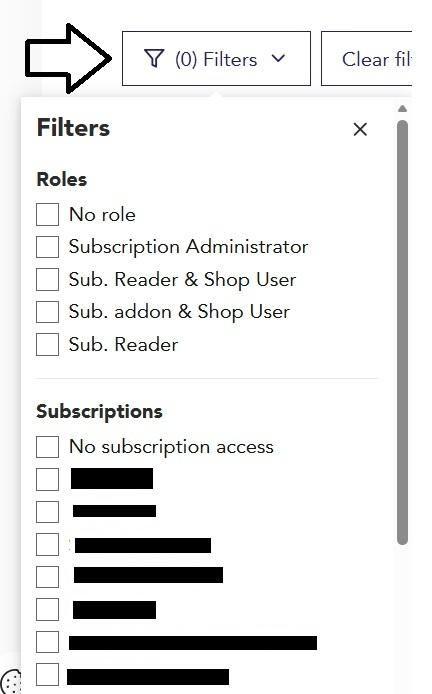
You can filter users based on user role or access rights:
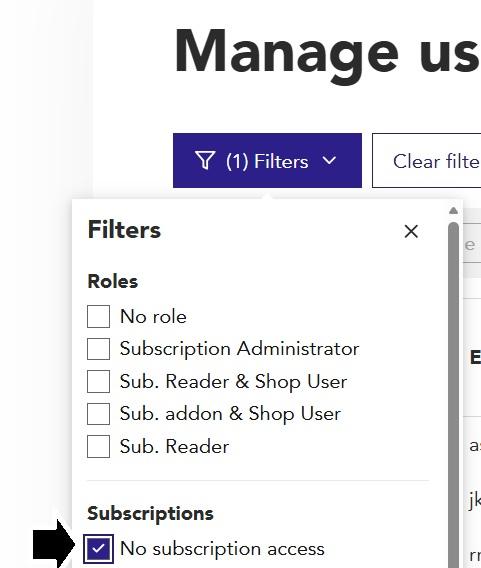
For example, if you wish to grant access rights for users who do not have any, select “No subscription access” under Subscriptions:
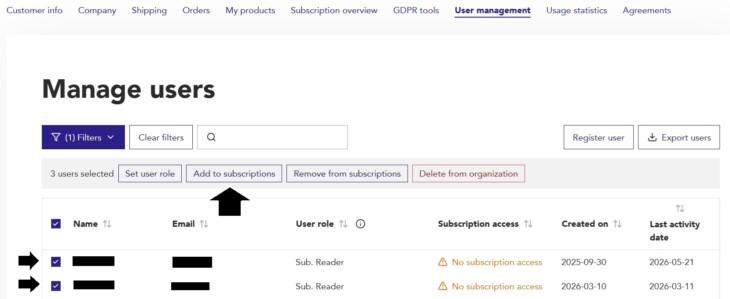
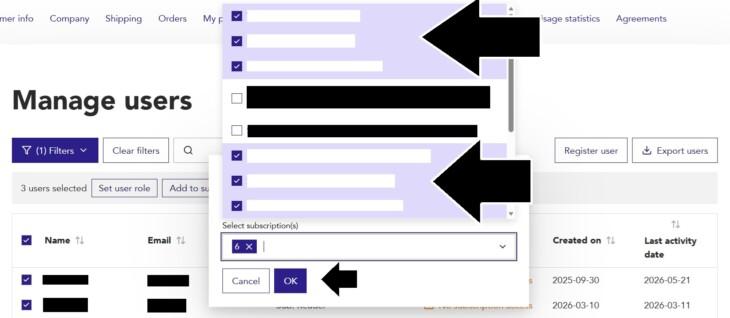
Check the boxes for the users you wish to grant access to the selected subscriptions and click “Add to subscriptions”:
In the displayed list, select the subscriptions you wish to grant access to for the selected users. Close the list by clicking the downward arrow in the selection field. Click “OK”:
Adding or registering users
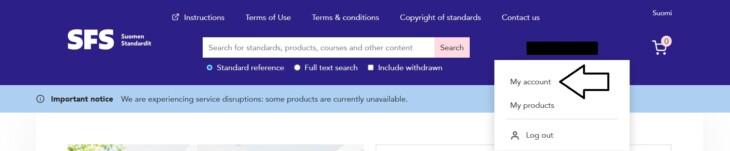
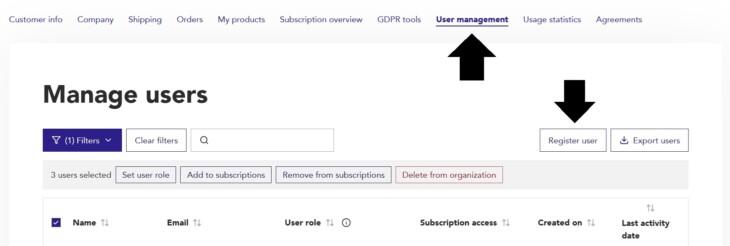
Go to My account, select the User management tab and click “Register user”:
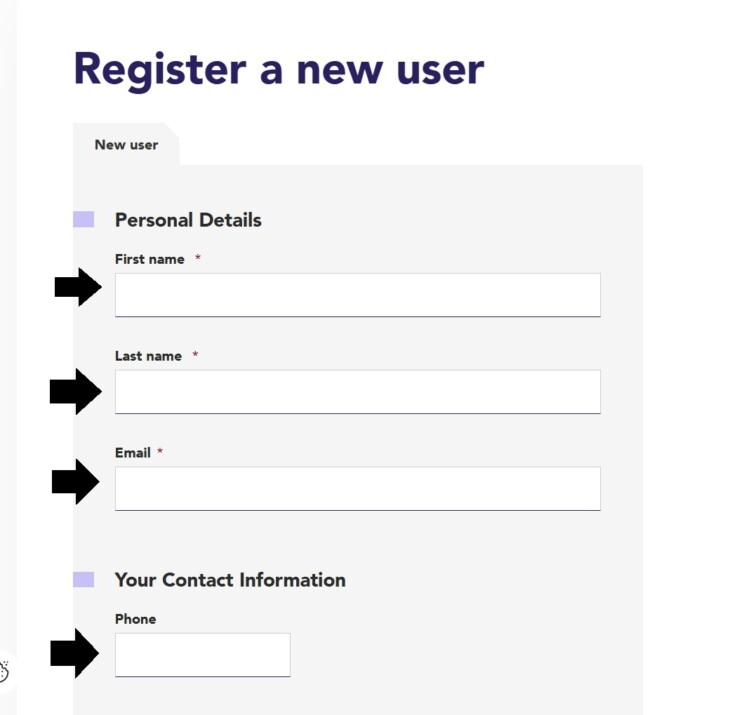
Fill in the user details, accept the terms of use for the service and click “Register”:
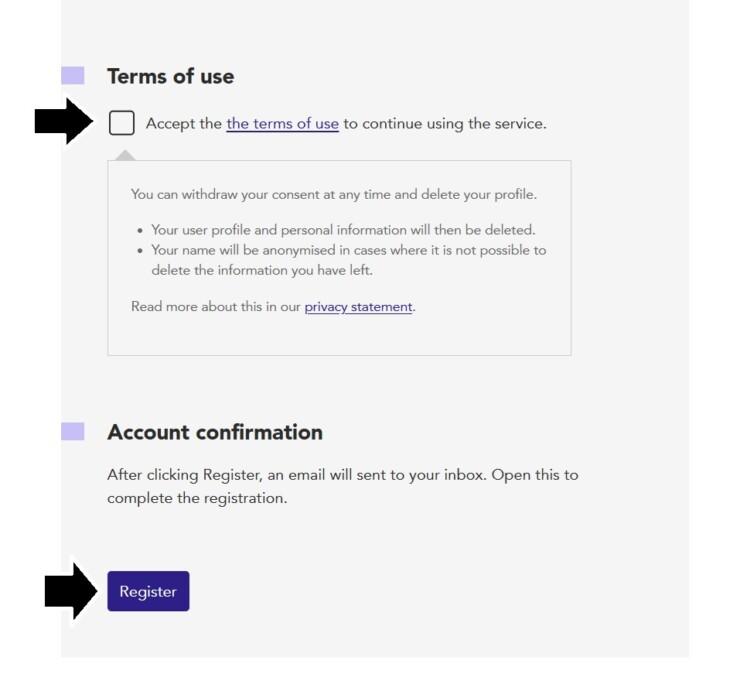
The user you registered will then receive an account activation link in their email.
Add standards to your subscription
Get quicker access to standards by adding them yourself
Our aim is to make using and managing standards as easy as possible. You can now use a self-service functionality to add new standards to your subscription in SFS Store whenever you need them. This way, you can access standards more quickly without contacting our customer service.
Who can add standards?
Standards can be added by people in the following roles:
- Subscription Administrator
- Sub. addon & Shop User.
Subscription Administrators can add standards at any time and grant access to people in the Sub. addon & Shop User role, if necessary. If you are not sure what type of rights you have, please contact your organisation’s Subscription Administrator.
How to add a standard to a subscription
- Log in to SFS Store using your own user account.
- Search for the standard and click the Subscribe button. In your subscription, the standard will be listed under the publisher in question.
- You can search for standards in the product list.
- Go to the shopping cart, check the contents and approve the price of the addition.
- The price is based on the subscription content and the number of users.
- The shopping cart shows the price of the addition for the remainder of the year, and the info button shows an estimate of the price for the entire year.
- Check the invoicing address, add a reference number if necessary, select the payment method and confirm the order.
- You will be sent a confirmation message by email, and the standard is available immediately.
If you are unable to or do not have the right to add standards to your subscription, please contact your organisation’s Subscription Administrator.